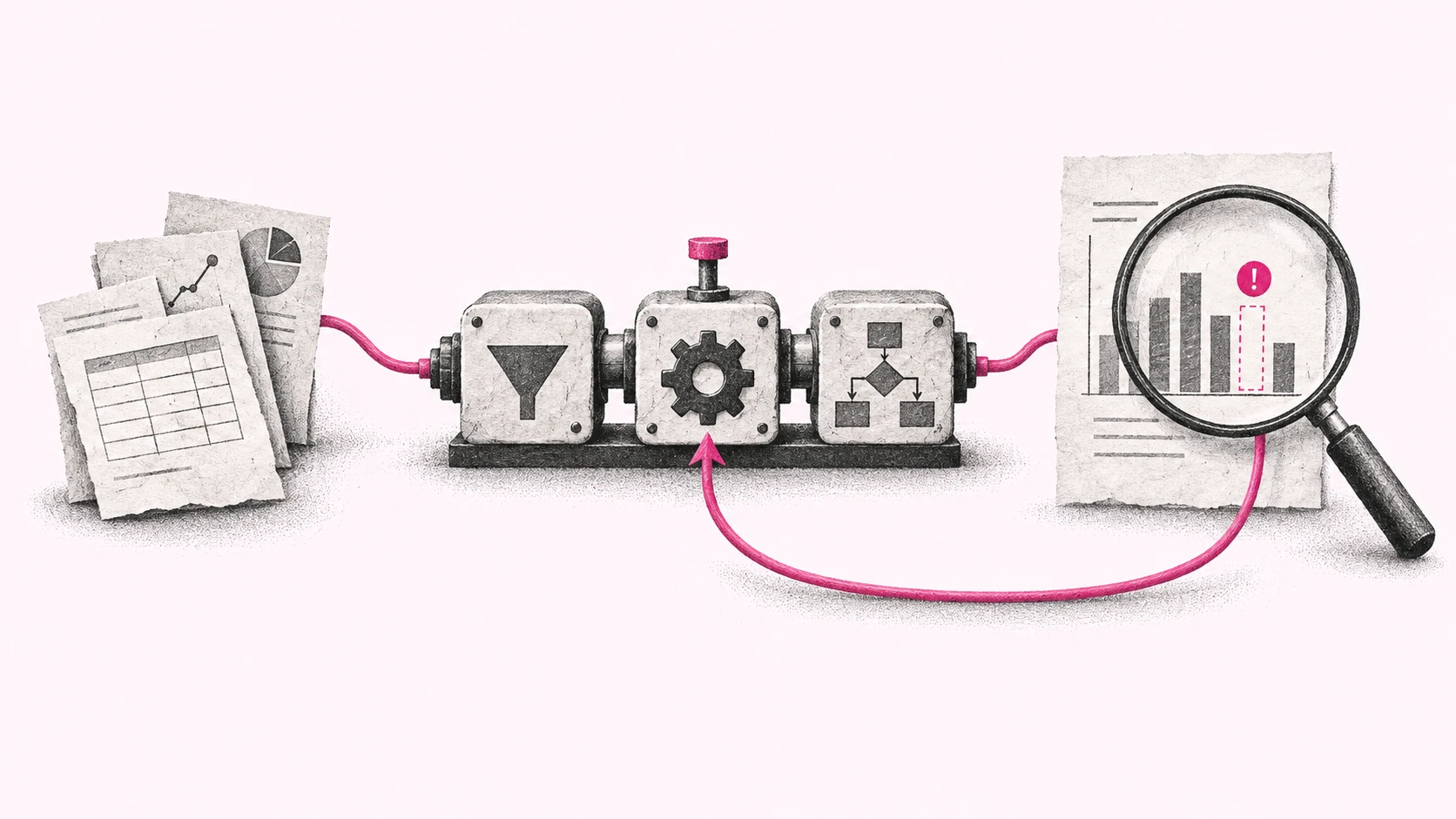
I’ve seen data pipelines finish a recalculation without reporting a technical error, yet leave some output tables empty. Reports built from those tables had no figures for the days being recalculated. The apparent decline reflected missing data rather than what had actually happened.
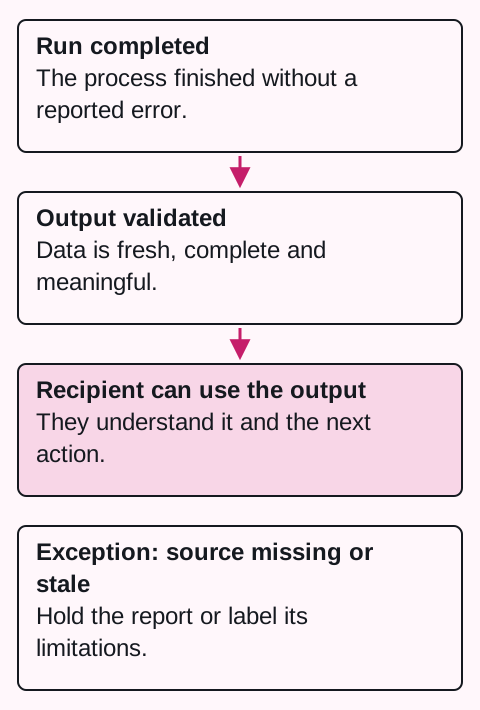
That distinction matters to me when running automations. I need to know the task ran, but also that it produced a complete, current, usable result. The run indicator answers only the first part.
A person may notice an empty dashboard. By the time someone catches the problem that way, end users may already be seeing it too. As a data practitioner, I want checks to catch it before people make decisions based on incorrect figures.
Start by checking what actually came out
For data, I add checks at each stage: whether a table contains the expected data at all, whether the types are correct, and whether values fall within agreed ranges. Control totals and comparisons with normal patterns can then catch tables that contain rows but are missing part of the data.
The rules need to reflect what the report means. Zero orders may be correct when the business was closed. The same zero during normal operations may signal a failure. A person has to decide what to check, when a difference is explainable, and when to hold back the result. AI can help propose checks; it doesn’t remove responsibility for what those checks mean.
For the rest of the walkthrough, take a hypothetical example: an automation combines three sources into an order summary every Monday and sends it to the team. We want to verify three different things:
- Execution: the task started and completed the required steps.
- Contents: the report covers the expected periods and records, the values make sense, and the sources are current.
- Delivery and use: the recipient received the correct version and can use it for the intended decision.
In our example, the new report might reuse the same old data snapshot as the previous run. The file was created, the message was sent, and the system reported no error. But the team is making decisions using old information. Open the delivered result and check its period and contents, too.
For the first check, compare the report against a few specific records in the source system. Then automate some of those checks: look at the last update time, whether each source is available, or an unusual drop in the number of records. A difference isn’t always an error, but you should be able to explain it.
With agents, watch for a change in quality, too
In workflows with fixed steps, such as those built in Make, I often see an input change lead to a visible failure. With agent-based automations, I worry more about work continuing while the agent starts delivering something different. The source material or its quality changes, and the original instructions are no longer enough. A fixed workflow can produce an incorrect result too; both need checks.
For an agent, I also check whether the output still serves the original purpose. Evaluations help with this: selected tasks with source material and criteria for a good result. After changing sources or instructions, we run those tasks again and periodically review real outputs from operation as well. I explain this approach in more detail in my article on evaluating an AI pilot.
If an agent prepares articles, counting how many it produces is not enough. Someone needs to read some of them and check that they follow the brief, use the right sources, and help the reader. A gradual move away from the intended output is often called drift. A successful-run indicator will not catch it by itself.
What happens when a source goes down?
During the first test, you usually want to see everything work. It’s worth testing the opposite too: a missing file or a service that doesn’t respond. Do this in a test run so the result doesn’t reach your colleagues as an ordinary report.
If one of three sources is unavailable, does the automation wait or build a report from the other two? If it sends a partial result, the missing information needs to be clear. Otherwise, the team may interpret fewer orders as a real decline when some simply couldn’t be loaded.
Next, test a retry. Missing confirmation does not establish that a message was never sent. Before sending it again, the system needs to check what it already did. Otherwise, the recipient may receive the same message twice. When creating orders or invoices, the same error can have more serious consequences.
Agree on who handles a problem
An error alert helps only if it reaches someone who can act on it. An administrator may restore access, a salesperson may supply missing information, and a team lead may decide whether to send an incomplete report. Each needs different information. “Something went wrong” won’t get them very far.
Name the person responsible for checking the result. They need to know who handles technical problems and who decides on rule changes. Record where the task runs, where it gets its data, and how to pause it. When something fails, you will not have to start by finding whoever originally set it up.
For our hypothetical report, an alert could read:
One of the three sources could not be loaded into Monday’s report. We have not sent the report yet. The administrator needs to check access to that source; the team lead will decide whether to wait or send a clearly labeled partial report.
This tells people what failed, what happened to the output, and who needs to act.
A small change still needs a quick check
Even a simple task changes over time. The report now needs to arrive on Tuesday, another team joins, or a data source moves. The edit may take a moment, but it’s still worth checking that the running automation actually uses the new settings.
Look directly in the tool that runs it. Are the schedule, instructions, source, and recipients correct? Does it have the access it needs? A note in the documentation or confirmation that the settings were saved doesn’t tell you what the next run will actually do.
If an incorrect message or data update could go out during the changes, pause the task. Try the new process in a test run first. After restarting it, check the first result. Changing the delivery time may need only a quick check. A new source requires checking its contents, too.
If no message arrives, is everything fine?
You expect the Monday report every week. If it doesn’t arrive, something is missing. But for a check that only flags overdue orders, silence may be the correct result. You need to distinguish a task that ran and found nothing from one that never ran at all.
That doesn’t mean receiving another message after every check. It can be enough to have a record of when it last ran and what happened. An alert should arrive when something fails, a scheduled run is missed, or the task needs a decision from you.
When an automation sends too many updates, people get used to ignoring them. An important alert can easily disappear among dozens of messages confirming that nothing happened.
Does anyone still use the report?
An automation can work perfectly and no longer help anyone. The team may have switched to a different report, messages may go to people whose roles have changed, or someone may be recalculating the same column by hand every week.
For my own automations, I ask whether they still do the job they were created for and deliver the expected result. If one causes harm or no longer helps, that is a reason to pause or stop it. Maintenance takes time, and running it can cost money even when nobody needs the output.
Ask the people using the result the same questions: Is this still useful? What’s missing? What do you have to finish manually? Sometimes the answers lead to a small adjustment. Sometimes you discover that you can turn the task off altogether.
Match the review frequency to the consequences of an error. An internal weekly summary needs different attention from a system that changes orders. Agree on who will check the result and when. If you find a recurring error, add an automated check so the task can catch it next time.
When I paused article production
In October 2026, we tightened content quality criteria across my websites. For HeyRup, Before the Magic, Ježíšek už jede, and Registree, I wanted to review the published pages first and improve those that fell short of the new rules. We paused new production to do that. At that point, improving content readers already used mattered more than adding more pages.
I hadn’t decided to give up automated writing. The priority and the conditions for continuing production had changed. Earlier, we had also replaced separate article jobs with a shared editorial workflow; the old jobs stayed off so they wouldn’t produce additional content alongside their replacement. An audit needs the reason a task was stopped, as well as a list of paused tasks.
I would take the same approach to a business report: record why I’m stopping the task, what must be true before it resumes, and who decides. Completing a repair doesn’t itself authorize sending reports again. The result still needs checking, and someone needs to confirm that the task should continue running.
Pick one automation you already rely on
Choose a task you depend on today and work through these questions:
- When did it last run, and where is the actual result?
- How do you know it used correct and complete information?
- What happens when it fails, and who gets notified?
- Could a retry perform the same action twice?
- Who can change the settings or stop the task?
- Does anyone still use the result, and does it help them?
If you hesitate on an answer, start there. You may only need a check for fresh data or a different recipient for error alerts. You don’t have to rebuild the whole system. A small adjustment can be enough to catch a problem early and make sure someone knows what to do about it.
For more on reliable tools and AI agents, see why I still pay for SaaS. If you want to start with one specific business process, take a look at the AI workflow sprint.